Creating a driver
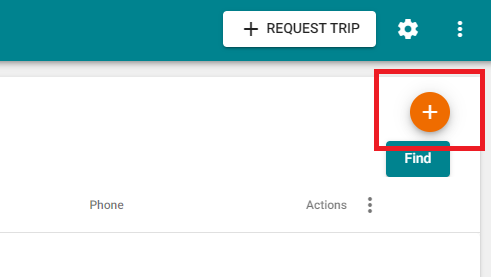
Creating a driver is very easy. Upon logging in as a provider, simply click on the Drivers button on the left-hand side navigation menu to be taken to the Drivers screen. On this screen, click on the orange (+) button on the top right to add a new driver.
A pop-up will appear which will include all required fields that must be provided. Once you have entered all of the fields, click on Save to add the new driver. The newly added driver will then appear in the list.
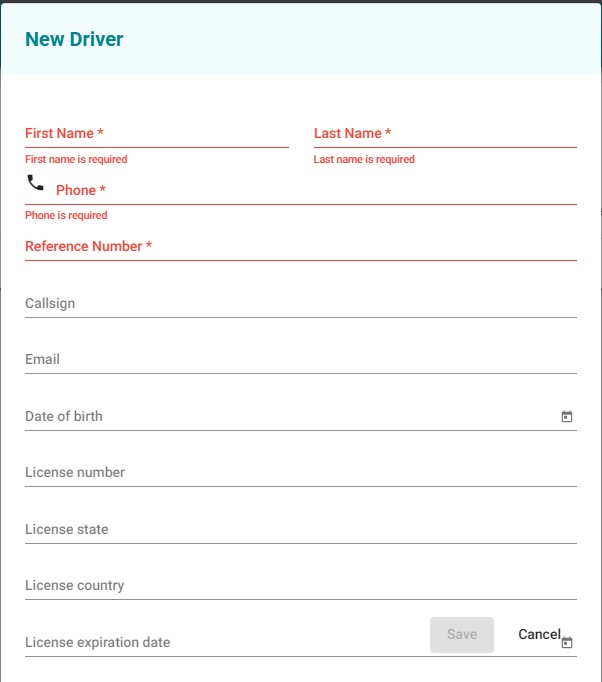
The value entered into the Reference Number field is what the driver will use to log in to the Click2Track driver app. If your company uses a designated system for drivers, you may choose to enter that value here. (E.g. "DRIVER-1", "A001", "D2", etc.) Otherwise, many providers simply choose to use their drivers' phone number as their reference number.
It is also important that you enter the driver license number, as this is the value that is used to designate drivers when performing trips for specific brokers.